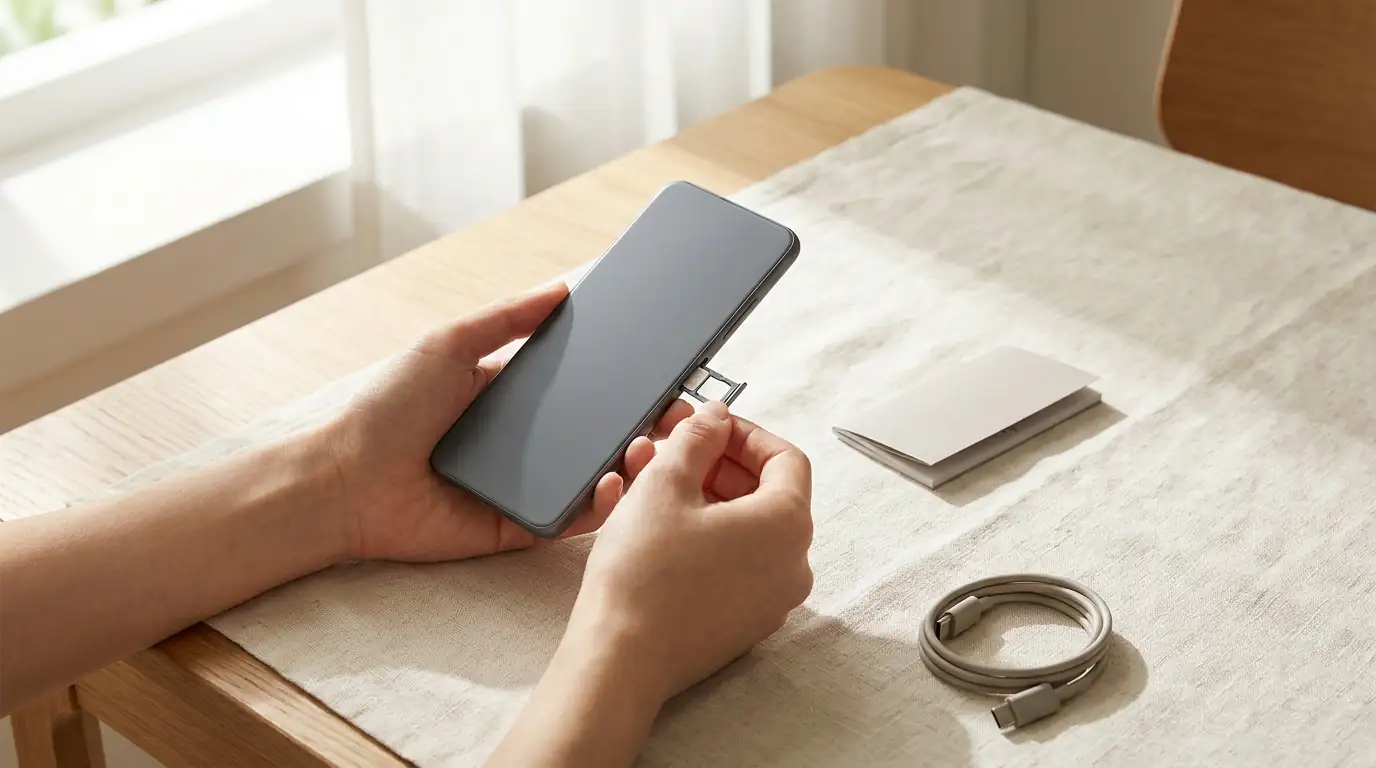
Public Mobile bring your own phone setup is straightforward if your phone is unlocked, compatible, and ready for either eSIM or a physical SIM. You do not need to buy a new phone from Public Mobile. The safer path is to check compatibility first, choose the SIM type your phone supports, then activate only after your coverage and plan choice are confirmed.
public mobile bring your own phone quick answer

Public Mobile BYOP quick answer
Yes, you can bring your own phone to Public Mobile. Your phone needs to be unlocked and compatible with the network service you plan to use. Public Mobile supports eSIM for compatible phones and physical SIM cards for phones that use a removable SIM.
The biggest mistake is subscribing before checking the phone. A plan can look perfect, but it will not help if your device is locked, too old, missing network support, or not eSIM-compatible when you choose eSIM. Check the phone first, then choose the plan.
Step 1: check that your phone is unlocked
In Canada, the CRTC Wireless Code says mobile devices must be unlocked free of charge upon request, and newly purchased devices must be provided unlocked. That means you should not have to pay an unlocking fee if your Canadian phone is locked to a provider.
If you are unsure whether your phone is locked, contact the carrier that sold it to you and ask them to confirm. You can also test with a SIM from another compatible carrier, but do that carefully if you are not comfortable changing SIM settings. If the phone asks for an unlock code or refuses the other SIM, it may still be locked.
Do this before you start the Public Mobile activation. Unlocking problems are easier to fix while your old service is still active and your current carrier account is still accessible.
Step 2: check Public Mobile compatibility
An unlocked phone also needs to support the right network technology. Public Mobile says its coverage is powered by TELUS, so your phone should support common Canadian LTE and 5G network requirements for the plan you want. A newer Canadian iPhone or Android phone is more likely to work well, but do not rely on age alone. Model number matters.
Check these items:
- Network support. Your phone should support LTE for normal data use and 5G if you want a 5G plan.
- VoLTE and calling support. Voice service can depend on the phone and network settings.
- eSIM support. If you want eSIM, your specific phone model must support eSIM.
- Canadian model differences. Some imported phones work differently from Canadian models.
- Software updates. Update your phone before activation if possible.
If you are already using a recent phone on a Canadian carrier, that is a better starting point. Still, checking compatibility before paying is the safer move.
Step 3: choose eSIM or physical SIM
Public Mobile supports both eSIM and physical SIM cards. eSIM is downloaded directly to a compatible phone and can be faster because there is no card to ship or pick up. A physical SIM is better if your phone does not support eSIM, if you prefer a removable card, or if you want the simplest option for an older device.
| SIM type | Best for | Watch out for |
|---|---|---|
| eSIM | Compatible newer phones and faster setup | Your exact phone must support eSIM, not just the brand name |
| Physical SIM | Older phones or users who prefer a removable card | You need the SIM before service can fully activate |
If your phone says it supports eSIM but activation fails, do not keep repeating the same step. Check whether the eSIM profile installed, whether it is turned on, and whether another SIM profile is interfering. Public Mobile community help often points users to check the cellular or SIM manager settings when eSIM appears installed but service is not active.
Step 4: transfer your number safely
If you are keeping your current phone number, do not cancel your old plan first. Keep the old SIM and old account active until the number transfer completes. Your old carrier may send a confirmation message that you need to approve. If your old service is already cancelled, the transfer may be harder or fail.
Use this simple order:
- Confirm your phone is unlocked.
- Confirm your phone is compatible.
- Choose Public Mobile eSIM or physical SIM.
- Choose the current Public Mobile plan that fits your usage.
- Start activation.
- Approve the number transfer from your old carrier when asked.
- Keep both SIM options available until service is working properly.
Our Public Mobile number transfer guide covers the number porting process in more detail.
Common BYOP problems to avoid
The most common BYOP issues are preventable. The first is using a locked phone. The second is choosing eSIM on a phone that does not support eSIM. The third is trying to transfer a number after cancelling the old service. The fourth is assuming coverage will be the same everywhere because the plan looks good.
Before switching, check the Public Mobile coverage map guide and your exact locations. If you spend time in basements, large buildings, rural roads, or cottage areas, those locations matter more than a general city-level coverage claim.
If your phone is not compatible, do not force it. You can choose a compatible unlocked phone, use a different device, or compare other carriers that better match your hardware. The right answer is the one that gets you reliable service, not the one that only looks cheapest on the plan page.
Should you bring your own phone to Public Mobile?
BYOP makes sense if your current phone still works well, has decent battery life, supports the network you need, and does not force you into a device financing contract. It is also useful if you want to lower your phone bill without replacing hardware.
BYOP is less attractive if your phone is old, damaged, has poor battery life, lacks eSIM if you want fast activation, or does not support the right network features. In that case, solve the phone problem before judging the carrier.
Once your phone is ready, activate through the official Public Mobile flow. If this guide helped, use referral code 5ESROG during activation to save on your first bill.
BYOP checklist before you pay
Run through this checklist before you start the subscription flow. It is faster to pause now than to fix a failed activation later.
- Confirm the phone is unlocked. If another carrier sold the device and you are unsure, ask that carrier to confirm unlock status.
- Confirm the exact model. Do not rely only on the brand name. Model variants can matter, especially with imported phones.
- Confirm SIM type. Choose eSIM only if your exact phone supports eSIM. Choose physical SIM if that is the safer path for your device.
- Confirm coverage first. Check the places where you will actually use the phone, not only your city name.
- Keep your old service active. If you are transferring your number, the old line should stay active until the transfer finishes.
This checklist also helps if you are setting up Public Mobile for a parent, student, or family member. The person using the phone may care less about the technical details, but the setup still depends on the device being ready.
If eSIM does not work right away
If you choose eSIM and service does not appear right away, check the phone settings before assuming the plan failed. On iPhone, look under cellular settings and confirm the Public Mobile line is turned on. On Android, check the SIM manager and make sure the Public Mobile eSIM profile is enabled. If another SIM or eSIM profile is active, it may be confusing the setup.
Restart the phone after installation, especially if the profile appears but service is not connecting. If the eSIM never installed, use the official Public Mobile help path instead of repeatedly buying or installing another SIM. Repeating the same action can make troubleshooting harder.
If a physical SIM does not work right away
If you use a physical SIM, power the phone off before inserting it, then turn the phone back on. Make sure the SIM sits correctly in the tray. If the phone shows no service, check whether the device is locked, whether airplane mode is on, whether the old SIM is still active in a dual SIM setup, and whether the Public Mobile account activation actually completed.
A physical SIM can be a better fallback for older phones or users who do not want to manage eSIM profiles. It is also easier to move between compatible phones. The tradeoff is that you need the card in hand before setup can finish.
BYOP is also useful because it separates your phone decision from your plan decision. If your current device is still good, you can focus on monthly service cost instead of bundling a new phone into the choice. If your phone is near the end of its life, replace the phone first or be honest that the carrier switch will not fix battery, storage, camera, or performance problems.
Do not erase your old phone or remove your old SIM until the new service works and your number transfer is complete. Keep account passwords, carrier account numbers, and the old SIM nearby during activation. Those small details can save time if the transfer needs confirmation or if support asks for account information.
If you are helping someone else activate, write down which email address, payment card, SIM type, and phone number transfer details are being used. Many setup problems happen because the person paying for service, the person holding the phone, and the person receiving transfer messages are not the same person. Keep the phone in your hand during activation and do not start the number transfer when the old phone is somewhere else.
If the device is dual SIM, decide which line should be primary before activation. That matters for calls, texts, mobile data, and iMessage or RCS settings. After Public Mobile is working, check that outgoing calls, incoming calls, text messages, and mobile data all work before removing the old SIM profile or changing more settings.
After activation, keep the old carrier account information for a few days. If a billing, transfer, or voicemail issue appears, it is easier to troubleshoot when you still have the original account details, SIM packaging, and confirmation messages available.
Frequently asked questions
Does my phone need to be unlocked for Public Mobile?
Yes. Your phone should be unlocked before you activate. In Canada, the CRTC Wireless Code says locked devices must be unlocked free of charge upon request, and newly purchased devices must be provided unlocked.
How do I check if my phone is compatible with Public Mobile?
Check the exact model, network support, LTE or 5G compatibility, and whether it supports eSIM if you plan to use eSIM. Also check the official Public Mobile activation flow for current compatibility checks.
Can I use an iPhone on Public Mobile?
Many unlocked iPhones work on Public Mobile, but compatibility depends on the model and network support. Check your specific iPhone model before activating, especially if you want eSIM or 5G.
How do I unlock my phone to use it on Public Mobile?
Contact the carrier that locked the phone and request unlocking. Under Canadian wireless rules, unlocking should be provided free of charge upon request.
Does Public Mobile support all Android phones?
No carrier can promise that every Android phone will work perfectly. Imported models, older phones, and devices missing Canadian network support can cause problems. Check the exact model before you subscribe.
What happens if my phone is not compatible with TELUS-powered coverage?
If your phone is not compatible, Public Mobile may not work reliably or may not activate as expected. Use a compatible unlocked phone or compare a carrier that better matches your device.
For the live network source, check the TELUS coverage map before making a final switching decision.
For the most accurate answer, check the public mobile bring your own phone at your exact home, work, commute, and travel locations before activating.